Aleph MCP Connector
Connect Aleph to your existing AI tools like Claude, ChatGPT, and Cursor. Ask questions, build reports, and take action — all using live, trusted financial data.
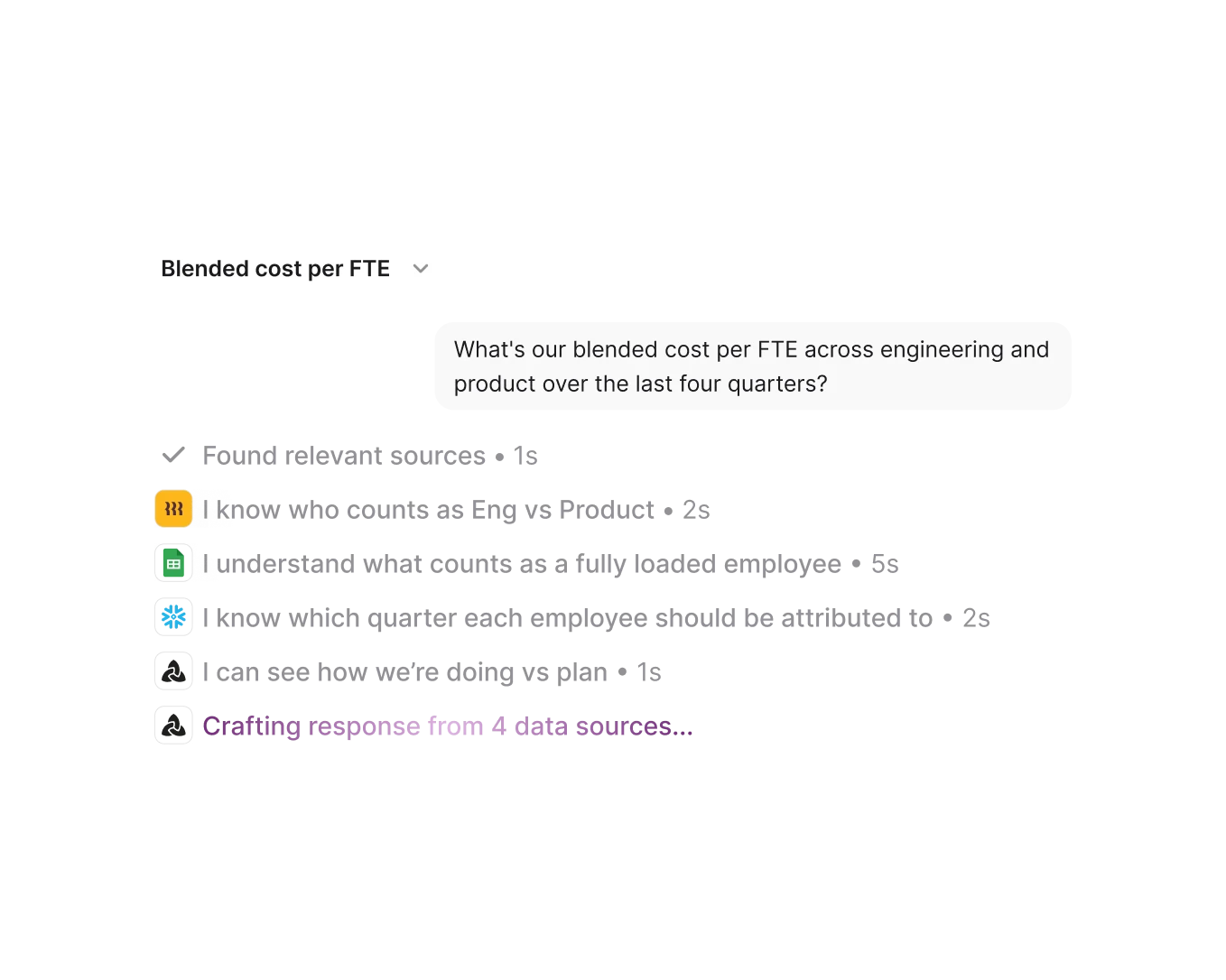

What is the Aleph MCP Connector?
Aleph provides a remote MCP (Model Context Protocol) server that lets AI assistants interact with your Aleph workspace. Once connected, your AI tools can browse tables, query data, manage dashboards and blocks, and work with integrations — all authenticated securely via OAuth.
Prerequisites
- An active Aleph account
- AI features enabled by a workspace Admin (Settings → AI → Enable AI Features)
- An MCP-compatible AI client (see supported clients below)
Server URL
Authentication
The MCP server uses OAuth 2.0 for authentication. When you first connect, your AI client will open a browser window where you sign in to Aleph and authorize access. No API keys or tokens need to be managed manually — the client handles token refresh automatically.
Setup Instructions
Claude Desktop / Claude.ai
- Open Settings → Connectors
- Click Add custom connector
- Enter the server URL and give it a name (e.g., "Aleph")
- Complete the OAuth authorization in the browser when prompted
Claude Code
Run the following command in your terminal:
claude mcp add aleph --transport http https://mcp.getaleph.com/mcpClaude Code will handle OAuth authorization automatically on first use.
Cursor
Add the following to your .cursor/mcp.json file:
{
  "mcpServers": {
    "aleph": {
      "type": "http",
      "url": "https://mcp.getaleph.com/mcp"
    }
  }
}
Restart Cursor and complete the OAuth authorization when prompted.
VS Code with Copilot
- Open the Command Palette (
Cmd+Shift+P/Ctrl+Shift+P) - Search for MCP: Add Server
- Select HTTP
- Enter the server URL
- Complete the OAuth authorization in the browser when prompted
ChatGPT
- Open Settings → Connectors
- Add a new connector with the server URL
- Complete the OAuth authorization in the browser when prompted
Other Clients
Any MCP-compatible client can connect using the server URL above. Configure it as an HTTP transport MCP server and complete the OAuth flow when prompted.
Available Tools
Tables
- list_tables — List all tables available to the user. Returns table IDs, names, model types, dimensions, and block counts.
- get_table — Get detailed information about a specific table including dimensions, measures, and model type. Supports lookup by ID or name.
- search_values_in_tables — Fuzzy search for dimension values across one or more tables. Useful for checking data availability.
Blocks
- get_table_blocks — Get all blocks (charts, tables, KPIs) for a specific table.
- search_blocks — Search for blocks across all tables by type and/or query.
- get_block — Get block metadata including name, type, table, dashboard(s), and configuration.
- manage_block — Create, update, or delete blocks on a dashboard page.
Dashboards
- list_dashboards — List dashboards with name, parent, and block names.
- get_dashboard — Get a dashboard with its pages and blocks, including layout positions.
- manage_dashboard — Update dashboard properties, page layouts, and global filters.
Integrations
- list_integrations — List all data integrations connected to the workspace.
- get_integration — Get detailed info about a specific integration.
- trigger_integration_refresh — Trigger a data refresh for an integration.
- patch_pass_through_columns — Add or remove pass-through columns for an integration.
Example Prompts
Once connected, try asking your AI assistant questions like:
- "Show me a summary of all my tables and how many blocks each one has."
- "Find all KPI blocks that reference revenue data."
- "What dimensions are available in my P&L table?"
- "Trigger a refresh for my NetSuite integration."
Troubleshooting
- OAuth window doesn't open — Make sure your browser allows pop-ups from Aleph. Try again or restart your AI client.
- Authorization fails — Verify AI features are enabled in your workspace (Settings → AI). Contact your Admin if needed.
- Tools not appearing — Restart your AI client after adding the MCP server. Some clients require a full restart.
- Connection drops — Re-authorize by removing and re-adding the MCP server in your client settings.
- "Server not found" error — Double-check the server URL. Ensure there are no trailing slashes or extra spaces.